Bring Your Own Model (BYOM)#
This section focuses on one of the key customization opportunities offered by Vitis AI.
Bring Your Own Model (BYOM) lets you use your own pretrained model. It supports models from PyTorch, TensorFlow, ONNX, and similar frameworks. Use them for AI inference on AMD hardware platforms. It leverages the NPU IP, tools, and libraries in Vitis AI.
The typical workflow for executing inference with NPU IP begins with training the network. However, the NPU IP is not involved in model training because it is not a training accelerator, but rather an inference accelerator.
The following figure describes the workflow for executing inference with NPU IP.
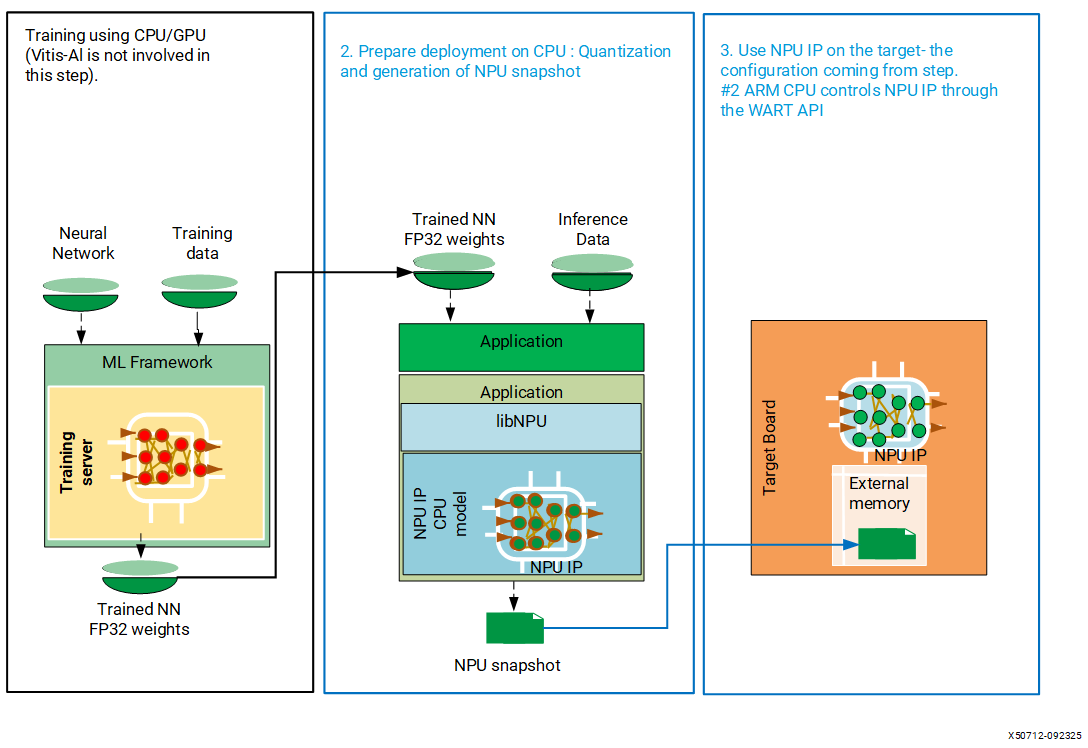
The first step in the previous diagram is “Model Training,” in which Vitis AI (NPU IP) is not involved. The second step is the model compilation process. In this step, the software stack of the NPU IP generates a description of the configuration of the NPU IP for the trained model. It is tailored for inference on NPU IP hardware. This description is commonly referred to as a snapshot. A snapshot contains all the necessary information required for efficient execution, including layer descriptions, weights, and input/output shapes.
The BYOM workflow addresses the following steps:
Generating Snapshot For Your Model: The procedure includes graph management, model quantization, and compilation of your custom model.
Deploying Your Model on Target Board: The operation includes deployment of custom model on the embedded platform (target hardware), and AI inference of the snapshot(s) you generated.
1. Generating Snapshot For Your Model#
The snapshot generation process performs the following tasks, and the Vitis AI NPU software stack takes care of all these stages automatically.
Graph Management
Quantization
Compilation
Graph Management#
Graph management is the first stage of the snapshot generation process, and it performs the following sub-tasks.
Converts your model to ONNX,
Graph splitting, and
Graph optimization
Note
The system expects your model to be ONNX-compliant. If it is not ONNX compliant, then Vitis AI software cannot compile the model and results in a compilation error.
The Vitis AI NPU software stack converts your model to ONNX and then splits the main model graph into sub-graphs named CPU sub-graph and Vitis AI Software (FPGA) sub-graph, depending on the layers supported by NPU IP. The ONNX runtime runs the CPU sub-graphs, and the NPU IP accelerates the Vitis AI software sub-graph. The following is an example of graph splitting visualized using Netron.
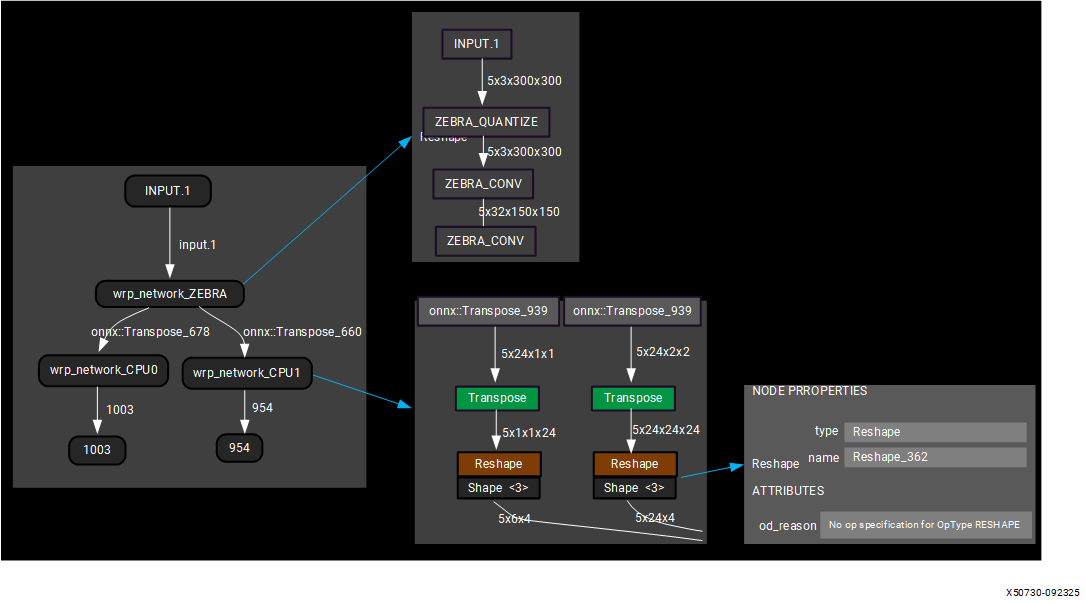
Note that sub-graphs are only generated after the compilation stage. You can use a visualization tool such as Netron to analyze the layers within the neural network model. These sub-graphs are simplified using a set of tools, including ‘pattern matching search and replace,’ provided by the Vitis AI NPU software stack. The goal is to ensure that as many operators as possible can run on the device. For example, the ‘Convolution (Conv_3),’ ‘Batch Normalization (BatchNormalization_4),’ and ‘Activation (Relu_5)’ layers are combined into a single ‘Convolution (Conv_3)’ layer.
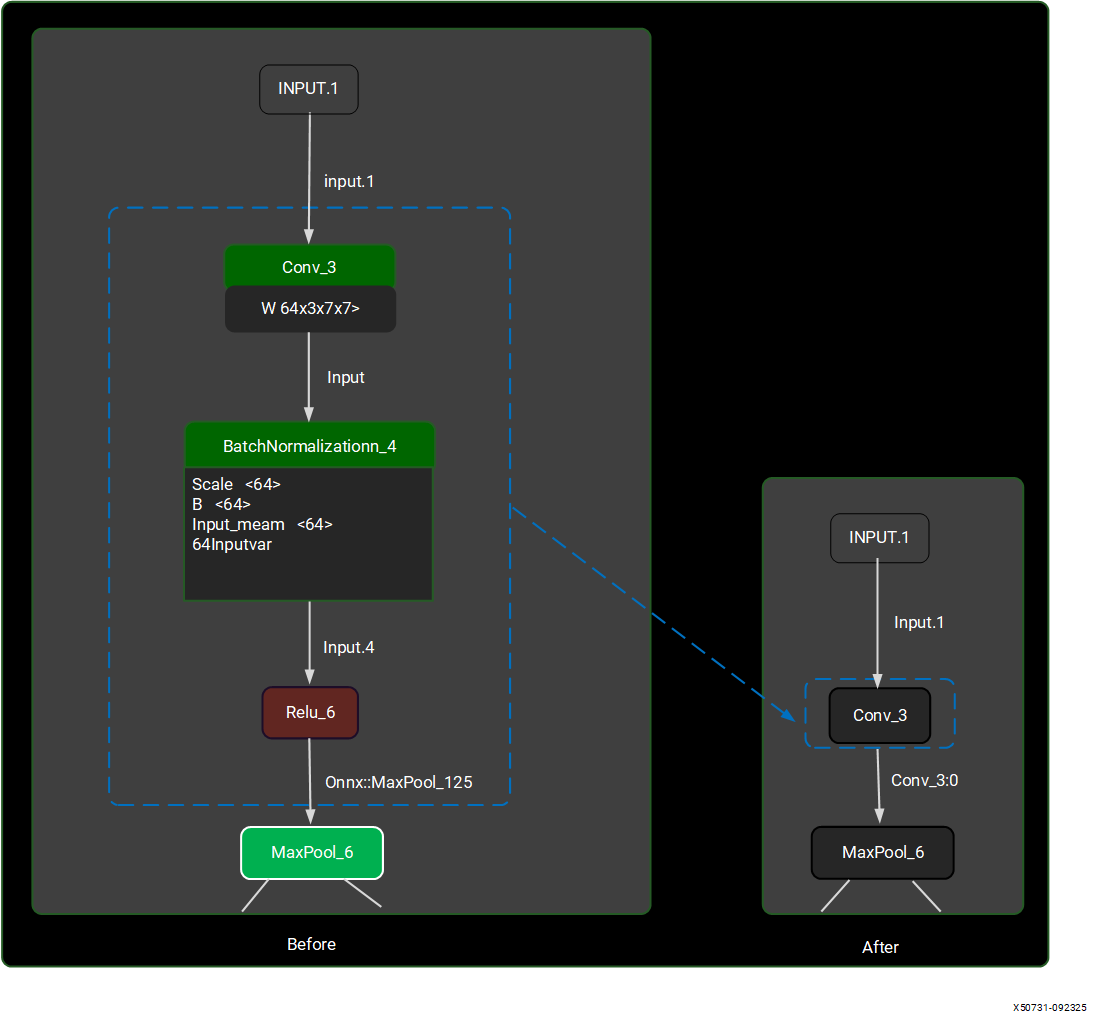
After optimizing the sub-graphs, the system uses the optimized/simplified graph for quantization, which the following section explains.
Quantization#
The Vitis AI tool provides an auto quantization feature that automatically enables quantization during the model compilation process.
Deploying neural networks on AMD NPUs becomes more efficient through the use of integer quantization, which reduces energy consumption, memory footprint, and the bandwidth required for inference.
AMD’s general-purpose NPUs support INT8 (8-bit integer) quantization for trained networks. For many real-world datasets, the range of weights and activations at a particular layer is often much narrower than what can be represented by a 32-bit floating-point number. By applying a scaling factor, it is possible to represent these weights and activations with integer values. The impact of INT8 quantization on prediction accuracy is typically minimal, often less than 1%. This level of precision is maintained across various applications, including those that process image and video data, point-cloud data, and sampled-data systems such as specific audio and RF applications.
This section explains the quantization/compilation process, along with suggestions for fine-tuning the accuracy. Before proceeding with quantization/compilation using Vitis AI, ensure that you meet the necessary prerequisites.
Prerequisites#
You need the following prerequisites to generate a snapshot for your custom model:
Docker: Ensure that Docker is running. Refer to the Install And Verify Docker section in Software Installations to launch Docker.
Custom model: The model (for which the snapshot is generated) is located in the
MY_APPdirectory on the host machine.Note
You create an
MY_APPfolder on the host machine and copy the custom model and dataset into that folder.Dataset: A valid dataset (for the custom model) resides in the
MY_APPdirectory on the host machine.Python application: A Python application runs the neural network using supported frameworks like PyTorch, ONNX Runtime, or TensorFlow. It performs inference on a valid input dataset, on the CPU or GPU of an x86 host. The
MY_APPdirectory includes the Python application namedmy_network_inference.pyas an example. It contains this simple example code snippet that uses ResNet50 from torchvision. For simplicity, proper pre-processing and top1 or top5 codes are omitted. However, the next Python code is sufficient for the NPU software stack to perform the quantization and compilation of the ResNet50 model. The Python code includes nothing specific to the NPU software stack. It is a valid Python program that you can execute with default Python packages.
import torchvision
import torch

transform = torchvision.transforms.Compose([torchvision.transforms.ToTensor()])

# Replace PYTORCH_IMAGENET with the actual path where you have saved the ImageNet dataset
imgnet_data = torchvision.datasets.ImageNet("PYTORCH_IMAGENET", split='val', transform=transform)
data_loader = torch.utils.data.DataLoader(imgnet_data, batch_size=1, shuffle=False)

model = torch.hub.load('pytorch/vision:v0.10.0', 'resnet50', pretrained=True)

for i, (in_data, y) in enumerate(data_loader):
    preprocess = in_data
    # pseudocode, replace with your pre-processing routines

    out = model(preprocess)
    # run inference model
    print("Process ", i)

    if i > 100:
        break
Note
You might use your custom model, dataset, and an application (that runs the custom model on the host machine) and attempt the following steps.
For illustration purposes, assume you have a Python script named my_network_inference.py that contains the above Python code. It runs the inference of your floating-point model (for example, a ResNet50 model). Assume the script includes the correct pre-processing and post-processing routines and points to the original floating-point neural network model. Also assume it uses the same test dataset from the model’s original training to achieve the best average prediction accuracy.
When you execute the script my_network_inference.py on your host machine, it runs the network on many inputs and eventually outputs an accuracy metric. You can refer to the following section for fine-tuning the accuracy.
Measure Accuracy#
First, collect the best achievable accuracy by running the network on the CPU, and then running the network on the emulated NPU (on the CPU) with the default parameters to establish a baseline.
Execute the following commands within the Docker container.
# Go to Vitis AI source code
$ cd <path_to_Vitis_AI_folder>

# Launch Docker
$ ./docker/run.bash -v <path_to_MY_APP>:/MY_APP

# Go to MY_APP folder within Docker. The MY_APP folder contains your custom model, Python application for inference, and required dataset, etc.
$ cd /MY_APP

# Run on CPU to get reference FP32 accuracy
$ python3 my_network_inference.py

# Activate NPU (set the Vitis AI environment)
$ source $VITIS_AI_REPO/npu_ip/settings.sh

# Run on NPU
$ python3 my_network_inference.py
After executing the previous commands, you obtain the inference and accuracy results on both CPU and NPU.
Quantization Options#
The Vitis AI tool provides various quantization options. You can use the following environment variables to change the default options of the NPU IP quantization process.
Changing the QUANTIZATION or DEEPQUANTIZATION options might result in better quality depending on the neural network.
Variable environment |
Description |
|---|---|
|
Directory where the model configuration is saved. Default: ~/.amd/vaisw |
|
Set the path of the snapshot directory. Default: <runSessionDirectory>/snapshot |
|
Control the number of images for quantization tuning. Default: 4 |
|
Choose another mode for quantization tuning (might take longer but can give better quality on some neural networks). Default: constrainedCalibrationV1.5 |
|
Enable deep quantization. Default: false |
|
Choose the number of images for deep quantization. Default: 200 |
|
Choose the number of epochs for deep quantization. Default: 5 |
In BF16 mode, there is no real quantization, since BF16 has a 16bits of precision, we map the FLOAT32 on 16bits without quantization. As a consequence, the deep quantization will have no effect. So when a model is fully compiled using BF16 precision, the options are not used and have no effect.
You can refer to the following section, which explains how to fine-tune the accuracy using the Vitis AI tool.
Fine-tune Accuracy#
There is no general rule about which options produce the best accuracy. It is possible that after quantization with the default options, the quality of the inference is unsatisfactory. This section aims to provide steps for a better outcome.
Step 1: Quality and Quantity of the Quantization Data#
Build a carefully chosen pool of images to represent the variety of possible input data for the network. By default, the system uses the first four images controlled by VAISW_QUANTIZATION_NBIMAGES.
Test various values for VAISW_QUANTIZATION_NBIMAGES to find the value that provides the highest accuracy. VAISW detects a change in quantization configuration and re-performs quantization.
$ VAISW_QUANTIZATION_NBIMAGES=1 python3 my_network_inference.py
$ VAISW_QUANTIZATION_NBIMAGES=2 python3 my_network_inference.py
$ VAISW_QUANTIZATION_NBIMAGES=10 python3 my_network_inference.py
$ VAISW_QUANTIZATION_NBIMAGES=20 python3 my_network_inference.py
Step 2: Changing Quantization Mode#
VAISW_QUANTIZATION_MODE controls the quantization mode. You try a mode called dynamic, which is slower but often better.
$ VAISW_QUANTIZATION_MODE=dynamic python3 my_network_inference.py
Step 3: Enabling DeepQuantization Flow#
Enabling the VAISW_DEEPQUANTIZATION_USE option activates the quantization-aware fine-tuning algorithm. This process is significantly slower but might produce more accurate results.
Note
This typically requires a large number of images. If the flow runs out of images before deep quantization ends, it does not affect anything.
$ VAISW_DEEPQUANTIZATION_USE=true \
VAISW_DEEPQUANTIZATION_NBEPOCHS=5 \
VAISW_DEEPQUANTIZATION_NBIMAGES=200 \
python3 my_network_inference.py
These strategies combine with one another, for example:
$ VAISW_QUANTIZATION_NBIMAGES=1 \
VAISW_QUANTIZATION_MODE=dynamic \
VAISW_DEEPQUANTIZATION_USE=true \
VAISW_DEEPQUANTIZATION_NBEPOCHS=5 \
VAISW_DEEPQUANTIZATION_NBIMAGES=200 \
python3 my_network_inference.py
Note
It is uncertain whether combining the better options outperforms other combinations because of their complex interactions.
In the previous examples, the number of images set in VAISW_DEEPQUANTIZATION_NBIMAGES is the number required to perform the weight quantization of the models. Besides, until the quantization is performed, the model outputs the FP32 output (and not the quantized output). As a consequence, running an inference of 300 images with VAISW_DEEPQUANTIZATION_NBIMAGES=300 returns the same output as using the FP32 model. Once the quantization is completed, the model starts outputting images matching the NPU results. Note that if you relaunch the inference a second time (without changing the environment variables), the compilation SW stack takes the already quantized weight and does not restart the quantization; therefore, the first images match the NPU simulation results.
Some more guidance on accuracy improvement
The default algorithm is fastQuantize. It is fast but (usually) not as good as deepQuantize. The rationale is to let you go fast to a run then come back on accuracy once it is running.
To measure best accuracy, you can use deepQuantize. It requires few hundreds images. It uses a CPU by default but is faster if a GPU is available.
If you want a first result with fastQuantize, you can use 5-20 images (not 1 image).
Select “correct” images: need to be diversified (eg not only cats if the network detects cats and dogs - but no need to have 1 image per category); need to have a result (eg if finding cats and dogs, better to have images having cats and/or dogs; ok if one image has no result because it is a result not to detect anything); not only outlier (eg not only “weird” cats and/or dogs but also more normal ones); no over expose, under expose, weird colors, etc; same preprocessing; result of preprocess that would lead to bias the image quality (eg only tiny images that are upscaled with a large ratio); etc. When we do tests, we actually simply use the first images of the dataset.
Measure on the full dataset, not a subpart.
FP32 reference must be calculated using the exact same dataset/environment/images/preprocessing. Paper results are sometimes high but are not reproduceable so easily, so comparison must be with the same everything on both FP32 and NPU.
A bit more network dependent: there are situation when lowering thresholds allow to recover accuracy. This is simply because the % confidence varies vs FP32 and leads to exclude objects that are actually detected.
Advanced Quantization Options for Channel Imbalance#
Understanding Channel-Wise Range Differences#
In some neural networks, the range of activation values can vary significantly from one channel to another within the same operation. This variation is known as channel imbalance. The Vitis AI quantizer applies a single quantization coefficient (scale factor) for all channels within an operator, which works well when all channels have similar value ranges.
During typical training, the activation ranges across channels remain relatively consistent. However, certain models or training procedures can produce channels with very different ranges. When this happens, finding a single quantization coefficient that works well for all channels becomes challenging, leading to accuracy loss:
Channels with large ranges may be well-represented but use most of the quantization precision
Channels with small ranges get “squeezed” into fewer quantization levels, losing detail
When to Suspect Channel Imbalance:
You should consider using these advanced options if:
You observe significant accuracy loss after quantization despite trying standard quantization improvements
Loss analysis shows high
mgaporp90_gapvalues (> 15 dB) for certain layersSome channels in your loss analysis have very low
uniqoruniq_p10values while others are normalYour model uses non-standard activation functions or unconventional layer structures
Available Mitigation Options#
The Vitis AI quantizer provides two options to mitigate accuracy loss caused by channel imbalance. Choose the appropriate option based on your network’s activation functions.
Option 1: Equalize Depthwise Channels (Recommended for ReLU/Leaky ReLU)
Use this option when your network uses ReLU or Leaky ReLU activation functions. This transformation equalizes the ranges across channels without impacting inference performance.
$ VAISW_IRIZ_TRANSFORMFORCEENABLE=EqualizeDepthwiseChannels \
  python3 my_network_inference.py
Characteristics:
Best for: Networks using ReLU or Leaky ReLU activations
Performance impact: None - this is a mathematical transformation that does not change the computational complexity
How it works: Redistributes the quantization range more evenly across channels by applying scale factors that balance the dynamic range
Compatibility: Works with depthwise convolutions and layers where channel-wise operations are separable
Example use case: You have a MobileNet-style architecture with depthwise separable convolutions and ReLU activations. Loss analysis shows high mgap values (> 20 dB) in several depthwise layers. Enabling this option can recover 2-3% accuracy without any performance penalty.
Option 2: Split Large Convolutions (For Other Activation Functions)
Use this option when your network uses activation functions other than ReLU or Leaky ReLU (such as Swish, Mish, or GELU). This transformation splits large convolutions into smaller ones to handle channel imbalance more effectively.
$ VAISW_IRIZ_TRANSFORMFORCEDISABLE=TransformGroupedConvLate \
  VAISW_IRIZ_TRANSFORMFORCEENABLE=SplitYoloxStemDepthwise \
  python3 my_network_inference.py
Characteristics:
Best for: Networks using Swish, Mish, GELU, or other non-ReLU activations
Performance impact: Yes - splits one large convolution into multiple smaller convolutions, which may reduce throughput by 5-15% depending on the layer
How it works: Decomposes grouped convolutions into separate operations that can use different quantization parameters, providing better per-channel representation
Compatibility: Particularly effective for YOLOX-style architectures and models with complex activation functions
Environment Variable Details:
VAISW_IRIZ_TRANSFORMFORCEDISABLE=TransformGroupedConvLate: Disables the late grouped convolution transformation, allowing earlier splittingVAISW_IRIZ_TRANSFORMFORCEENABLE=SplitYoloxStemDepthwise: Enables splitting of depthwise convolutions in stem layers (particularly relevant for YOLOX architectures)
Example use case: You have a YOLOX model with Swish activations. Standard quantization loses 5% mAP. Loss analysis shows channel imbalance in the stem layers. Using this option recovers 4% mAP but reduces throughput by about 8%.
Choosing the Right Option#
Use this decision flow to select the appropriate option:
Identify if you have channel imbalance:
Run loss analysis (see loss-analysis-section)
Look for layers with
mgap> 15 dB orp90_gap> 20 dBCheck if
uniq_p10values are very low (< 20) whileuniqis normal
Check your activation functions:
If using ReLU or Leaky ReLU: Use Option 1 (
EqualizeDepthwiseChannels)If using other activations: Use Option 2 (
SplitYoloxStemDepthwise)
Evaluate the results:
Measure accuracy improvement
For Option 2, measure performance impact using the performance analyzer
If accuracy improves significantly but performance impact is too high, consider mixed precision (BF16 for problematic layers, INT8 for others)
Combining with Other Quantization Options#
These advanced options can be combined with other quantization strategies:
# Option 1 with deep quantization
$ VAISW_IRIZ_TRANSFORMFORCEENABLE=EqualizeDepthwiseChannels \
  VAISW_DEEPQUANTIZATION_USE=true \
  VAISW_DEEPQUANTIZATION_NBIMAGES=200 \
  python3 my_network_inference.py

# Option 2 with dynamic quantization mode
$ VAISW_IRIZ_TRANSFORMFORCEDISABLE=TransformGroupedConvLate \
  VAISW_IRIZ_TRANSFORMFORCEENABLE=SplitYoloxStemDepthwise \
  VAISW_QUANTIZATION_MODE=dynamic \
  python3 my_network_inference.py
Note
Performance Considerations:
Option 1 (
EqualizeDepthwiseChannels) has no runtime performance impact and should be tried first if your network uses ReLU/Leaky ReLU.Option 2 (
SplitYoloxStemDepthwise) trades performance for accuracy. Measure the performance impact using the Performance Analyzer tool before deploying to production.These options do not affect quantization time (compilation time) significantly.
Warning
Do not enable both options simultaneously. Choose the one appropriate for your activation functions. Enabling both may lead to unexpected behavior or suboptimal results.
Analyzing Quantization Loss Per Layer#
When deploying your model with quantization (INT8 or BF16), you may experience accuracy differences compared to the original FP32 model. The loss analysis tool helps you identify which layers are most affected by quantization, enabling you to focus optimization efforts where they matter most.
The tool compares two runs of the same network layer by layer: a reference run (typically FP32) and a quantized run. For each layer, it computes multiple metrics to quantify the quantization error and identifies problematic layers that may need attention.
Overview#
The loss analysis runner works by splitting your network into sub-graphs (one per operation) and comparing the outputs of two configurations:
Configuration 1 (c1): Reference run, typically in floating-point (FP32)
Configuration 2 (c2): Quantized run (INT8 or BF16)
For each layer, the tool computes confrontation metrics and dumps detailed data to disk for layers that show significant differences.
Running Loss Analysis#
To activate loss analysis, add these environment variables before running your inference application:
$ VAISW_FE_FLOWRUNON=LOSS_ANALYSIS \
  VAISW_FE_LOSSANALYSISSETUP=c1:float,c2:fq,mode:inject,output:c1 \
  python3 my_network_inference.py
Environment Variables:
VAISW_FE_FLOWRUNON=LOSS_ANALYSIS: Activates the per-layer comparison between the original graph (c1) and quantized graph (c2).VAISW_FE_LOSSANALYSISSETUP: Configures how the comparison runs. The format is a comma-separated list of key:value pairs:c1:float: Configuration 1 runs in plain FP32. Options are:float: Full floating-point precisionfq: Floating-point quantized (applies quantization in FP32 domain)fqj: Floating-point quantized with hardware-like precision
c2:fq: Configuration 2 runs in floating-point quantized mode.mode:inject: Controls how quantization error accumulates:inject: Each layer of c2 receives its input from the corresponding layer in c1. Quantization error is isolated per layer and does not accumulate. This mode is useful for identifying which specific layers introduce the most error.accu: Each configuration runs independently. Quantization error accumulates throughout the layers, showing the cumulative effect.
output:c1: Specifies which configuration’s output to use as the reference.
The tool processes each batch of your inference run and logs a comprehensive table with per-layer metrics.
Example Output:
Below is an example showing per-layer confrontation metrics:
layer | type      |eq|err %|step|nrmse|qsnr|mgap|p90_gap|uniq|uniq_p10
input | Z_UPLOAD  |no|50 % |0.50|.213 |44.4| 0.0|   0.0 |128 |128
conv  | Z_CONV    |no|100 %|0.32|2.26 |23.0|22.8|  51.4 |116 |2
dwc   | Z_CONV_DW |no|100 %|0.64|1.13 |30.4| 6.5|  12.1 |100 |18
pwc   | Z_CONV    |no|100 %|2.22|7.67 |13.2| 7.7|  12.0 | 17 |7
... (continues for all layers)
Key Observations:
conv: High NRMSE (2.26), mgap (22.8), and p90_gap (51.4) with low uniq_p10 (2) indicate significant channel imbalance requiring optimization.pwc: A pointwise convolution with very high NRMSE (7.67), low QSNR (13.2), and low uniq (17) indicates severe quantization problems.Focus optimization on layers with NRMSE > 2.0, QSNR < 20 dB, mgap > 15, or uniq < 30.
Understanding the Metrics#
The loss analysis tool computes several metrics for each layer. Here is what each metric tells you:
Metric |
Description |
|---|---|
|
Are c1 and c2 outputs identical? Shows |
|
% of tensor elements that differ between c1 and c2. Most quantized layers show 100%, which is normal. |
|
Average difference in quantization steps. Lower is better. |
|
Normalized Root Mean Square Error. Overall error magnitude. Lower is better. Values < 0.1 are good. |
|
Error bias: |
|
Quantization Signal-to-Noise Ratio (dB). Higher is better. Values > 30 dB are good. |
|
Mean dynamic range gap across channels. High values indicate channel imbalance. |
|
90th percentile of dynamic range gap. Similar to mgap, less sensitive to outliers. |
|
Number of unique quantized values used. Higher is better (up to 256 for INT8). |
|
10th percentile of unique values across channels. Shows if some channels use few levels. |
Interpreting the Results:
Focus on layers with high NRMSE or low QSNR: These layers introduce the most quantization error.
Check layers with low uniq values: These layers may not be using enough quantization levels to represent the data faithfully.
Watch for high mgap/p90_gap: Layers with wide dynamic range across channels are challenging to quantize and may benefit from per-channel quantization.
Systematic bias (c1 c2 metric): If errors are heavily biased in one direction, it may indicate a calibration issue.
Analyzing the Output Files#
The loss analysis tool generates detailed data files for manual inspection and analysis. All files are stored under your run session directory.
Directory Structure:
Output files are organized as follows:
<runSession.directory>/wrp_network_<hash>/confrontation_dumps/
├── {layer_id}/                    # Per-layer outputs
│   ├── c1_FLOAT32.npy, c2_FLOAT32.npy       # FP32 outputs
│   ├── c1_INT8.npy, c2_INT8.npy             # Re-quantized to INT8
│   ├── weights.npy, biases.npy              # Layer parameters
├── MetricDiffBoxplot/             # NRMSE visualization (HTML)
├── MetricQSNR/                    # QSNR statistics (JSON)
└── MetricChannelImbalance/        # Channel imbalance data (JSON)
File Descriptions:
Per-Layer Dumps (
{layer_id}/directories):c1_FLOAT32.npyandc2_FLOAT32.npy: Floating-point representations of the layer outputs. These are the reference values for comparison.c1_INT8.npyandc2_INT8.npy: The same tensors re-quantized using the layer’s quantization parameters. These show the actual values as they would be stored and processed by the hardware. For unsigned quantization, the files are named_UINT8.npy.weights.npyandbiases.npy: Layer parameters (only for convolutional layers). Useful for understanding if weight quantization is the source of error.{tensor_name}_nulp_diff_UINT32.npy: For BF16 precision, shows the difference in ULP (Unit in the Last Place), which measures floating-point precision differences.
MetricDiffBoxplot/ directory:
Contains HTML visualization of NRMSE per layer. Open the HTML file in a browser to see a graphical representation of which layers have the highest quantization error.
MetricQSNR/ directory:
qsnr_stats.json: JSON file with QSNR statistics (mean, median, quartiles) across all layers, expressed in decibels (dB).
MetricChannelImbalance/ directory:
channel_imbalance.json: JSON file with mean_gap_dB and p90_gap_dB per layer, sorted in descending order. Layers at the top have the most imbalanced channels.
Using Loss Analysis Results#
Once you have the loss analysis results, you can:
Identify Problematic Layers: Review the logged metrics table and visualization files to identify layers with high quantization error.
Inspect Layer Outputs: Load the
.npyfiles using NumPy to examine the actual values and understand the nature of the error:import numpy as np # Load layer outputs c1_float = np.load('confrontation_dumps/layer_123/c1_FLOAT32.npy') c2_float = np.load('confrontation_dumps/layer_123/c2_FLOAT32.npy') # Compute custom metrics or visualizations diff = np.abs(c1_float - c2_float) print(f"Max absolute difference: {diff.max()}") print(f"Mean absolute difference: {diff.mean()}")
Optimize Quantization: Based on the analysis:
For layers with low QSNR or high NRMSE, consider using higher precision (BF16 instead of INT8) if supported.
For layers with channel imbalance, ensure per-channel quantization is enabled.
For layers with few unique values, review the calibration dataset to ensure it covers the full range of layer activations.
Re-run with Different Configurations: Experiment with different quantization modes and calibration strategies to see if accuracy improves:
# Try dynamic quantization mode
$ VAISW_QUANTIZATION_MODE=dynamic \
  VAISW_FE_FLOWRUNON=LOSS_ANALYSIS \
  VAISW_FE_LOSSANALYSISSETUP=c1:float,c2:fq,mode:inject,output:c1 \
  python3 my_network_inference.py

# Or try deep quantization
$ VAISW_DEEPQUANTIZATION_USE=true \
  VAISW_DEEPQUANTIZATION_NBIMAGES=200 \
  VAISW_FE_FLOWRUNON=LOSS_ANALYSIS \
  VAISW_FE_LOSSANALYSISSETUP=c1:float,c2:fq,mode:inject,output:c1 \
  python3 my_network_inference.py
Note
Loss analysis adds computational overhead and generates significant disk output. It is recommended for debugging and optimization phases, not for production inference. The tool processes each batch, so running on a small subset of your dataset is often sufficient to identify problematic layers.
Layer Support#
This section covers the list of supported layers.
Operation |
Layer Support |
|---|---|
Performance IP INT8/BF16 |
|
Bias add |
Yes |
Conv2d |
All strides, best efficiency with stride = 1 or 2 |
Conv3d |
Yes |
FC |
Yes |
depthWise Conv |
No limitation |
Dilated Conv |
No limitation |
Grouped Conv |
No limitation |
Deconvolution, Upconv, Transpose (2D & 3D) |
APU-only |
Deformable Conv |
No |
ReLU |
Approximation with 16 intervals max |
ReLU6, Leaky-ReLU, GeLU |
Approximation with 16 intervals max |
PreLU (Same parameters for all maps) |
Approximation with 16 intervals max |
Sigmoid, Swish |
Approximation with 16 intervals max |
H-Swish, Mish, Tanh |
Approximation with 16 intervals max |
ClipByValue (and min/max)/Clamp |
Approximation with 16 intervals max |
Square, Reverse Sqrt |
APU-only |
Concat |
Yes |
Space to Depth/Reorg |
Tensorflow ordered mode with block_size 2 or 3 Pytorch’s PixelUnshuffle -> APU |
Depth to Space/pixelShuffle |
APU-only |
channelReorder |
Yes |
Max/Avg Pooling 2D |
Size WxH less than or equal to 2048 - kernel 2x1, 1x2, 3x1, 1x3 not supported (Max Pooling) - Exclude padding not supported - Extensible upon request, subject to prioritization |
Max/Avg Pooling 3D |
APU-only |
Padding |
Mode: value=0 (no mirror or copy) Max 15 pixels on all edges |
Crop |
Yes |
Upsample |
Nearest only |
cropAndResize |
APU-only |
BatchNorm, Const Mul/Add |
Yes |
Eltwise add |
Yes |
Eltwise mul / mul (With shape WxHx1) |
Yes |
Eltwise mul / mul (With shape 1x1xC) |
APU-only |
Sum (Reduction on map channel) |
Yes |
L2Norm |
APU-only |
Custom ops |
No |
By now, you have learned quantization and its options, fine-tuning accuracy, and the list of supported layers by the Vitis AI tool. You can refer to the following section for the Mix Precision feature.
Mix Precision#
Precision of the computation#
Starting from Vitis AI 5.1, the precision of the computation is not hardcoded in the IP. It can be selected during the model compilation (snapshot generation).
In addition, it is also possible to change the precision of the computation in an internal layer of a model, and therefore perform part of the computation in INT8 and the remaining in BF16. This is implemented by having a ‘conversion’ operation on the AIE. Note that both activation neurons and weights have the same precisions (both INT8 or both BF16). The mix-precision here is a feature allowing you to change dynamically the precision of the computation on the graph.
By default, the computation uses quantized INT8.
The following options are possible:
VAISW_FE_PRECISION=BF16
All layers are computed using BF16 precision.
VAISW_FE_PRECISION=MIXED
Layers are executed either using INT8 precision or BF16 precision.
By default, all the operations are executed using INT8 computation up to the last convolution of the branch. The remaining operations starting from the last convolution use BF16 precision.
The option VAISW_FE_MIXEDSELECTION can be used to change which part is executed in BF16.
VAISW_FE_MIXEDSELECTION=BEFORE_LAST_CONV (default)
VAISW_FE_MIXEDSELECTION=TAIL
Debugging option to control a minimum percentage of GOPS on BF16. The last operations are executed using BF16 precision, and the amount of layers using BF16 is controlled by the VAISW_FE_MIXEDRATIO. For instance, VAISW_FE_MIXEDRATIO=0.05 will try to assign 5% of the computation using BF16 precision.
Note
Currently, the compilation SW stack supports only the transition from INT8 to BF16.
The precisions of the computation affect only the layer being accelerated on the AIE. The precision of the layers being executed outside of the AIE (CPU or PL tail, usually executed in FLOAT32) is not affected by the above options.
Transition from BF16 to INT8 will be supported later.
Datatype of the input and output layers#
The datatype in DDR of the input and output layers can be controlled during the snapshot generation.
The following datatypes are supported:
UINT8: Usually used for input images
This can be used for both INT8 or BF16 precision of computation.
INT8: This is a ‘quantized’ INT8 used for INT8 computation
Float inputs are quantized into INT8 when the first layer of the graph is executed in INT8 computation.
In case the application uses real INT8 input, the quantized coefficient will be 1, and the computation will use plain INT8.
FLOAT32: This is usually used for the output of a graph
This can also be used for the input of the graph in case the model takes FLOAT32 as input.
FLOAT32 datatype can be used when the computation precision is in BF16; INT8 computation doesn’t support FLOAT32 datatype.
BF16: This datatype is used when BF16 precision is used for the computation.
The optimal results (from a performance and quality point of view) are achieved when the datatype of computation matches the datatype of the application. For instance, for most object detection applications, input will be an 8-bit image (in UINT8), and output will be in FLOAT32. The ratio of the INT8/BF16 operations allows a tradeoff between accuracy and performance.
Input datatype behavior
For an input datatype of the model in UINT8 (or for input in the range [0:255] with any datatype), the input datatype in DDR will be UINT8.
For an input datatype in the range [-128:127], the input datatype will be INT8.
For all other datatypes or ranges:
If the precision of the input computation is INT8, the input datatype will be INT8 (quantized).
In such cases, a quantize operation should be implemented to convert the model input into the NPU input datatype.
This operation can be executed on the APU by the embedded SW stack.
If the precision of the input computation is BF16, the input datatype will be BF16.
Datatype can be forced to be FLOAT32 instead of BF16 by setting during the snapshot compilation:
VAISW_FE_VIEWDTYPEINPUT=AUTO
Output datatype behavior
If the precision of the output computation is INT8, the output datatype will be INT8 (quantized).
In such cases, an unquantize operation should be executed to convert the NPU output datatype into the model output.
This operation can be executed on the APU by the embedded SW stack.
Or can be executed by a PL kernel.
If the precision of the output computation is BF16, the output datatype will be BF16.
Datatype can be forced to be FLOAT32 instead of BF16 by setting during the snapshot compilation:
VAISW_FE_VIEWDTYPEOUTPUT=AUTO
Preprocess Transforms#
Preprocess Transforms are preprocessing operations that can be effortlessly transferred from a Python application to the accelerated network’s graph. This feature is available through the variable environment configuration: VAISW_RUNSESSION_PREPROCESSTRANSFORMS. Below is the generic syntax for utilizing this functionality:
VAISW_RUNSESSION_PREPROCESSTRANSFORMS={<input_name>:[op1(args), op2(args), …], …}
The transformations are embedded within the accelerated AI graph, ensuring that these operations are included in the generated snapshot. Consequently, preprocessing operations will not be necessary in the embedded application that runs the snapshot.
Importantly, there is no requirement to modify the Python application responsible for generating the snapshot. The preprocessing operations can remain in the original application, as the compilation software stack effectively manages this by negating the additional transformations.
Here are some practical examples of usage:
YOLOv5 requires images to be normalized within the range [0,1]. While the original network accepts floating-point values as input, images are typically stored as uint8 values within the range [0,255]. A common preprocessing step in applications involves dividing pixel values by 255 and converting them from uint8 to float. By using the preprocess transform, this operation can be accelerated by the AI engine. The AI engine will accept uint8 data as input and will automatically perform the division by 255. Below is an example of how to achieve this using YOLOv5 PyTorch Ultralytics application: (Please note that the input name of the graph may not always be labeled as “input.1.”.).
VAISW_RUNSESSION_PREPROCESSTRANSFORMS="{'input.1':['Affine(0.00392,0.)']}"ResNet50 was trained on images where the channels were normalized using specific values: \(\mu\) = [123.675, 116.28, 103.53] and \(\sigma\) = [58.395, 57.12, 57.375]. Normalization is typically performed within the application to convert uint8 input images into float format suitable for model input. However, by incorporating this normalization directly into the AI engine, it becomes capable of accepting uint8 inputs. To facilitate this process, a Cast operation can be added, which converts the input from uint8 to its original type, such as float32. This approach allows the AI engine to process uint8 inputs directly, eliminating the need for quantization and normalization in the embedded application. The option to accelerate this by the AI engine is:
VAISW_RUNSESSION_PREPROCESSTRANSFORMS="{'input.1':['Cast(\"uint8\",\"float32\")','StdNorm([123.675,116.28,103.53],[58.395,57.12,57.375])']}"
Ensure that values are provided as floats, as fractions are not supported.
Following operations are currently available:
StdNorm:
Description: Apply standard normalization on the selected input: X → ( X - mean ) / std
Usage: StdNorm(mean, std)
Affine:
Description: Apply an affine transform on the selected input: X → alpha * X + beta
Usage: Affine(alpha, beta)
Cast:
Description: Apply a cast on the selected input: X(type0) → X(type1)
Usage: Cast(in_type, out_type)
By now, you have learned quantization and its options, fine-tuning accuracy, the list of supported layers, the Mix precision feature and Preprocess Transforms by the Vitis AI tool. You can refer to the following section for Compilation.
Compilation#
As the Vitis AI tool offers auto-quantization feature, the compilation occurs along with the quantization and the commands are same for compilation and quantization.
You need to use the VAISW_SNAPSHOT_DIRECTORY macro and specify a name for the snapshot when running the quantization or compilation command for your custom model.
An example command is shown below.
VAISW_SNAPSHOT_DIRECTORY=snapshot.your_model_name python3 my_network_inference.py
The above command generates the snapshot (named snapshot.your_model_name for your custom model) matching a given NPU IP configuration. The compiled model should match the NPU configuration of the platform; if not, a runtime error will occur. The implication is that models compiled for a specific target NPU IP must be recompiled if they are to be deployed on a different NPU IP.
After you have compiled the snapshot folder, you can leverage Netron to review the final graph structure. Inside the snapshot directory, there is an onnx file named wrp_network_iriz.onnx. This graph can be opened with Netron and will indicate the part of the sub-graph being accelerated by the NPU IP.
The snapshot contains the following components:
Layers Description: Describes the structure and configuration of the neural network, providing insights into its architecture.
Weights: Includes the weights associated with each layer of the neural network, crucial for accurate inference.
Input and Output Shapes: Specifies the shapes of input and output data, aiding in data preparation and result interpretation.
Now the model compilation (or snapshot generation) process is explained. Refer to Docker Samples and Demos for more details. You can also refer to the following section, which covers how to deploy your compiled snapshot on the target board.
2. Deploying Your Model on Target Board#
After the neural network has been converted into a snapshot, the snapshot directory has to be transferred to the embedded platform. The snapshot content is loaded by the embedded software stack during the initialization. Then, the application can perform the inference of that model for a given input and return the resulting output. The embedded software stack provides the necessary functions to perform those steps.
You can deploy your model by using the following applications. Refer to Execute Sample Model for usage and sample commands.
VART Runner Application (C++ and Python)
End-to-End (X+ML) Application
And, you can refer to Applications for more details on customizations and recompilation.